 ContactSafe
How to use ContactSafe
Step-by-step instructions drawn from the app’s own tips.
Contacts
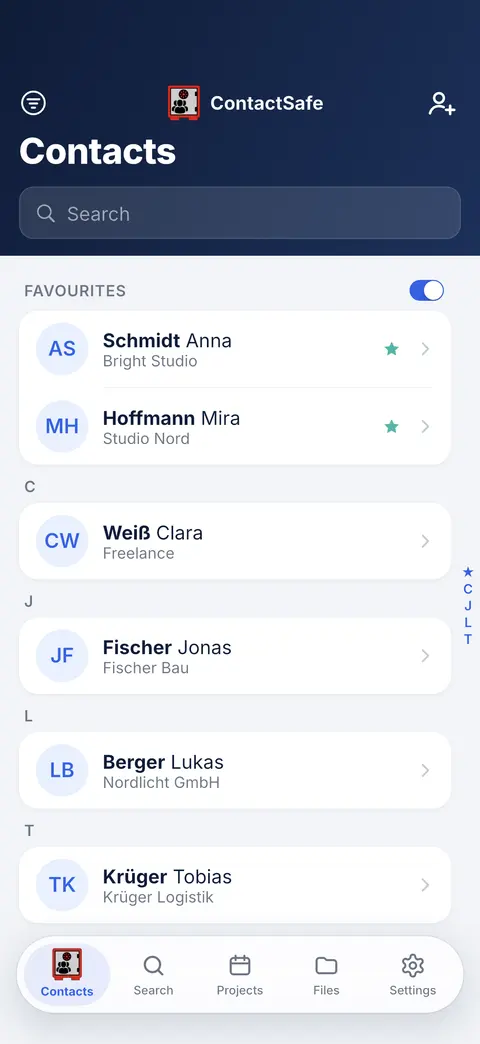 1
Add a contact
Tap + to add someone. Your phone’s contacts can be imported in Settings.
- 2
Find a contact
Type a name, company, number or email.
- 3
Jump by letter
Slide along the letters to reach a name fast.
- 4
Hold for quick actions
Hold a contact to star it, send its card or delete it.
- 5
Filter by group
Show only the groups you choose; tap again to see everyone.
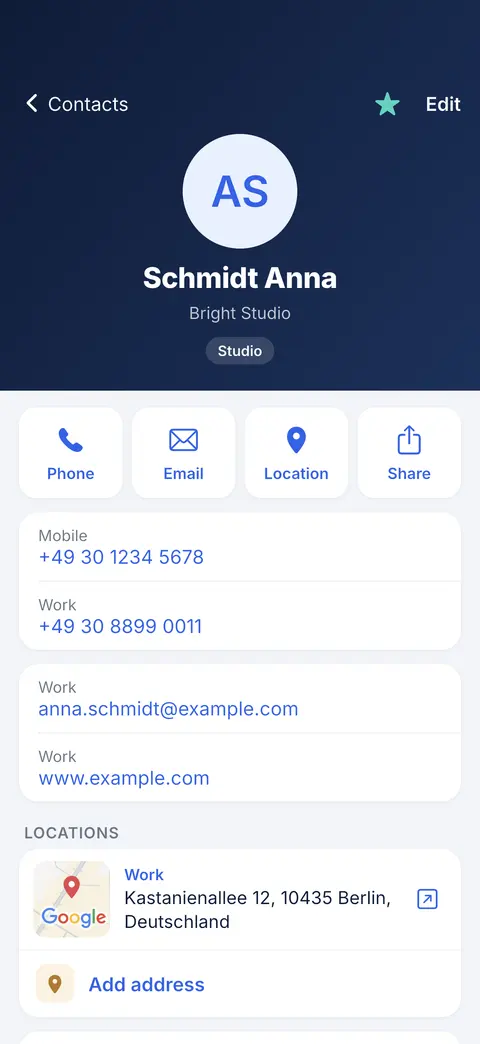 6
Call, write, find
Call, email or open the place in one tap. A faded button adds the first one.
- 7
Star and edit
Star a favourite; Edit changes the name, numbers and addresses.
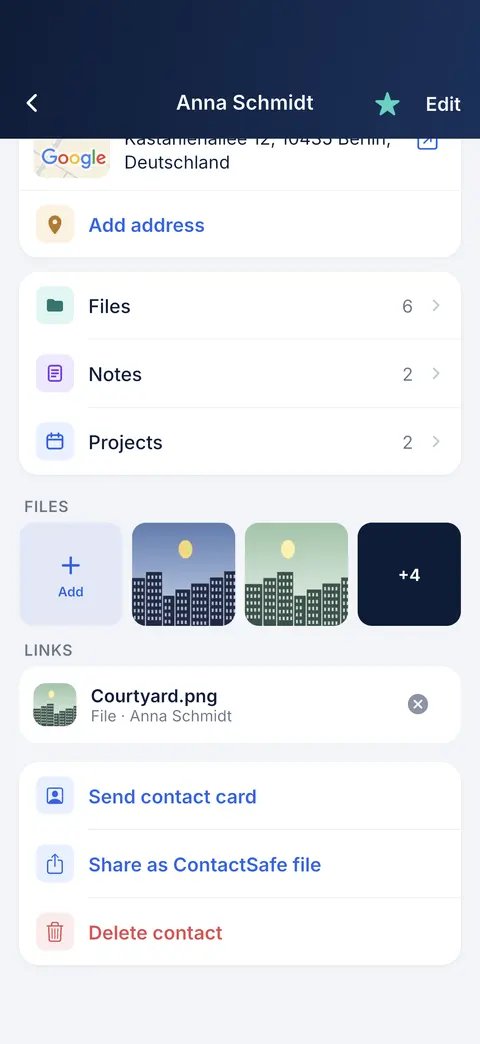 8
Add photos and files
Tap + Add to attach a photo, a scan or any file to this person.
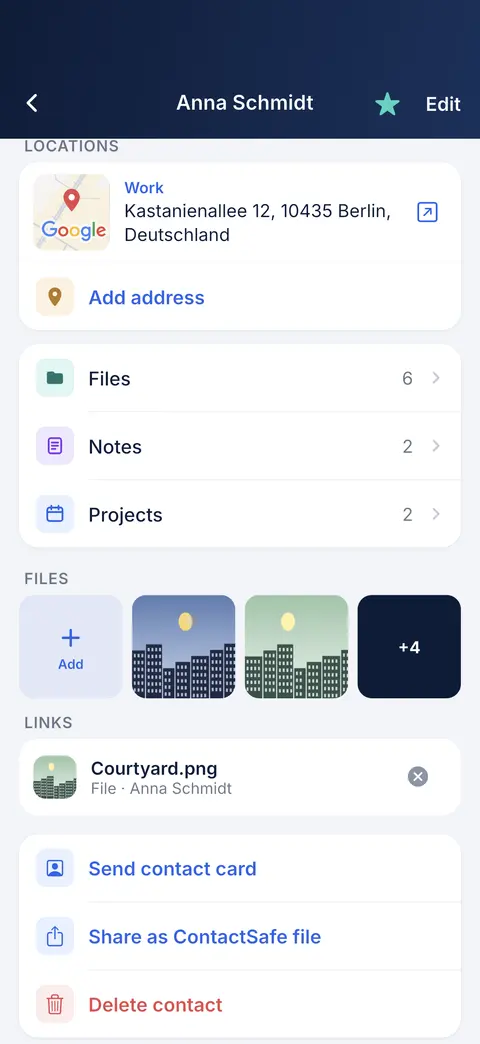 9
Files, notes and projects
Everything about this person, one tap away.
- 10
Places
Tap a place for maps, copy, a website or sharing.
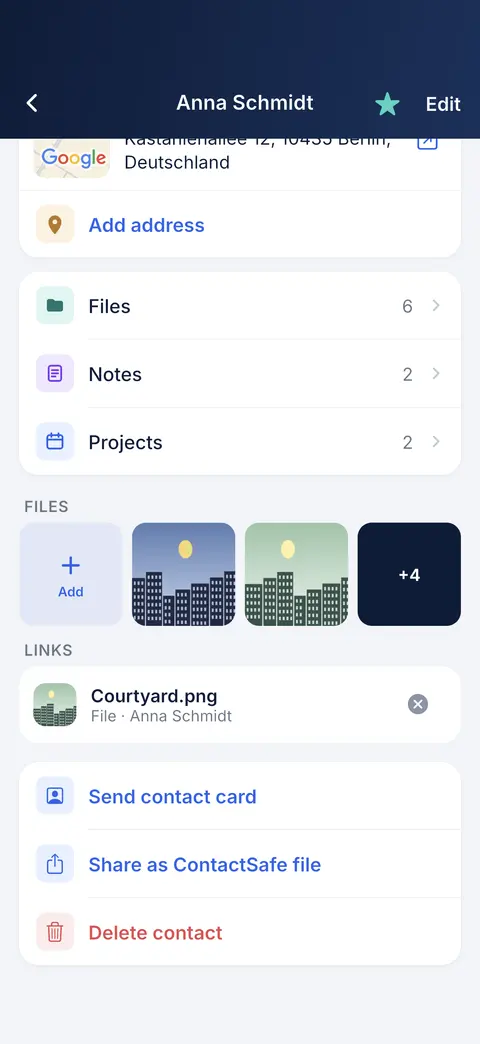 11
Hold for more
Hold an empty spot on this page to paste or add something quickly.
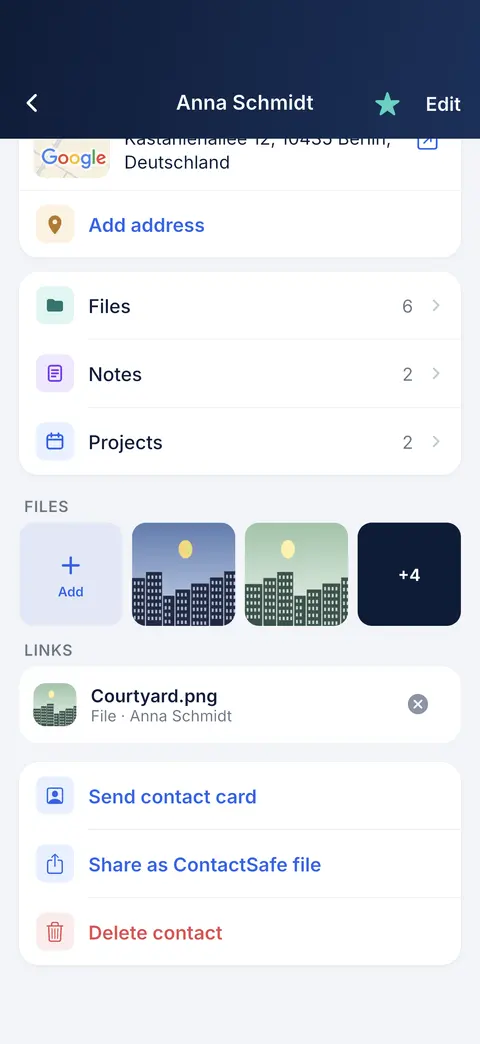 12
Share a contact
Send a contact card, or the whole contact with its files as a ContactSafe file.
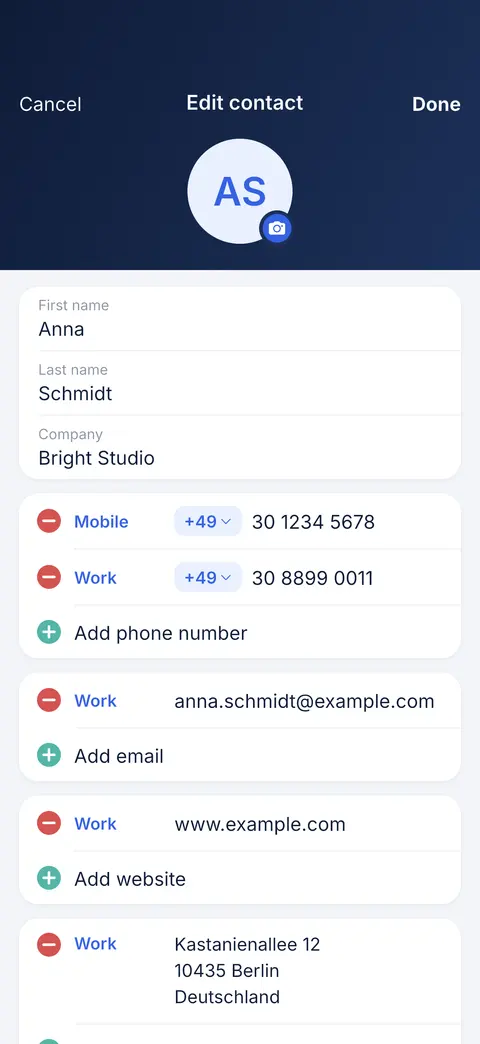 13
Contact photo
Tap to take or choose a photo.
- 14
Change the label
Tap Mobile, Work and so on to change it.
- 15
Country code
Pick the country code for the number.
- 16
More numbers
Add as many as you need; − removes one.
- 17
Addresses
Tap to edit an address; drag its grip to reorder.
- 18
Favourites on top or in A–Z
In Contacts, flip the switch next to FAVOURITES. Off, starred people sit among the letters; on, they are back at the top.
Videos
Groups
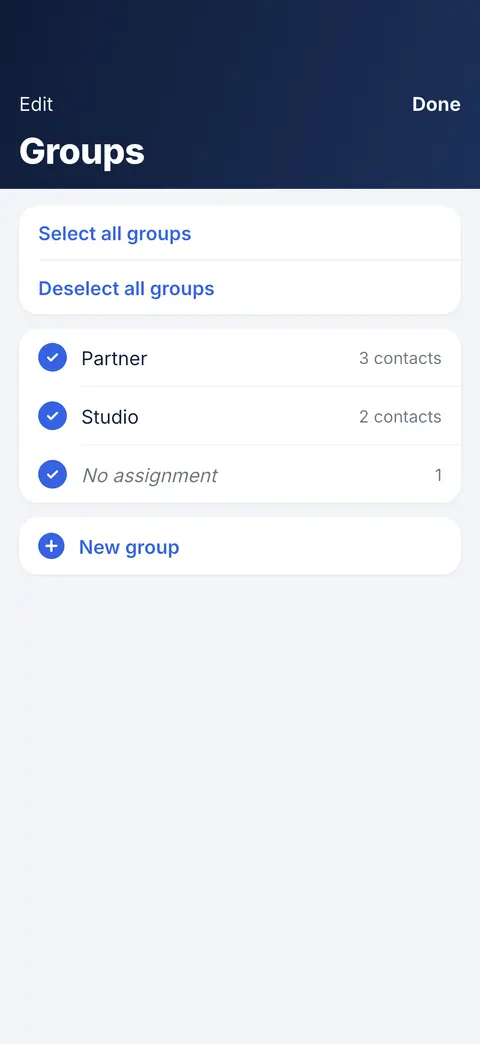 1
Make a group
Name a group, then add people to it right away.
- 2
Tick to filter
Tick the groups to show in Contacts; hold one to open it.
- 3
All or none
Show every group, or clear them all in one tap.
- 4
Edit groups
Tap Edit, then a group, to rename it or change who is in it.
- 5
Groups
Tap a group to change which groups this person is in.
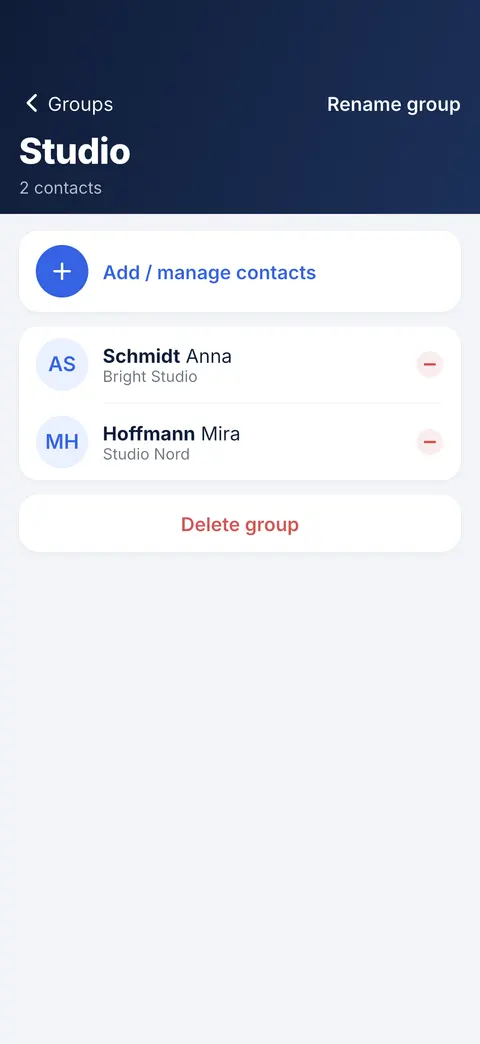 6
Add people
Pick who belongs to this group.
- 7
Remove from group
Tap − to take someone out; the contact itself stays.
- 8
Delete the group
Removes the group only, never the contacts in it.
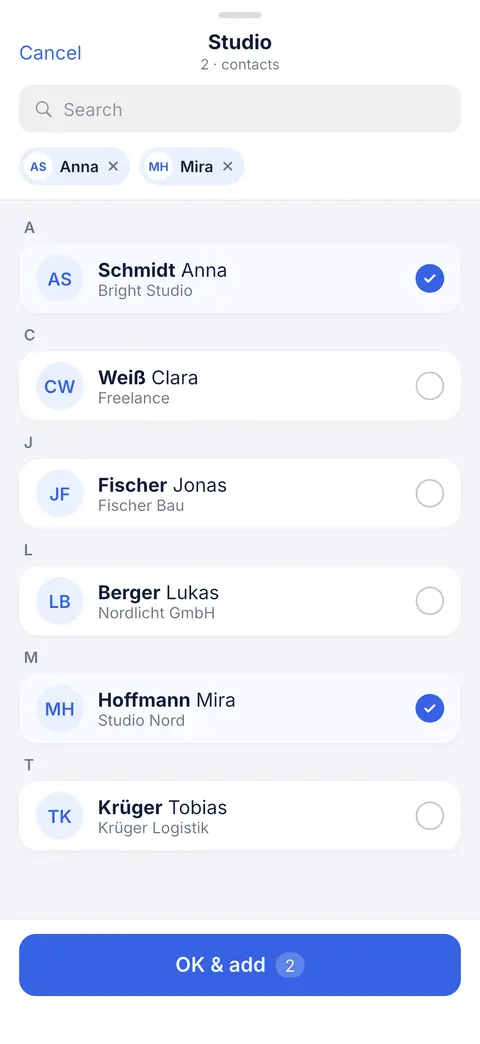 9
Search to add
Type a name to find someone fast.
- 10
Tick to choose
Tap people to add or remove them.
- 11
Nothing changes until OK
OK saves the group; Cancel keeps it as it was.
Videos
Files
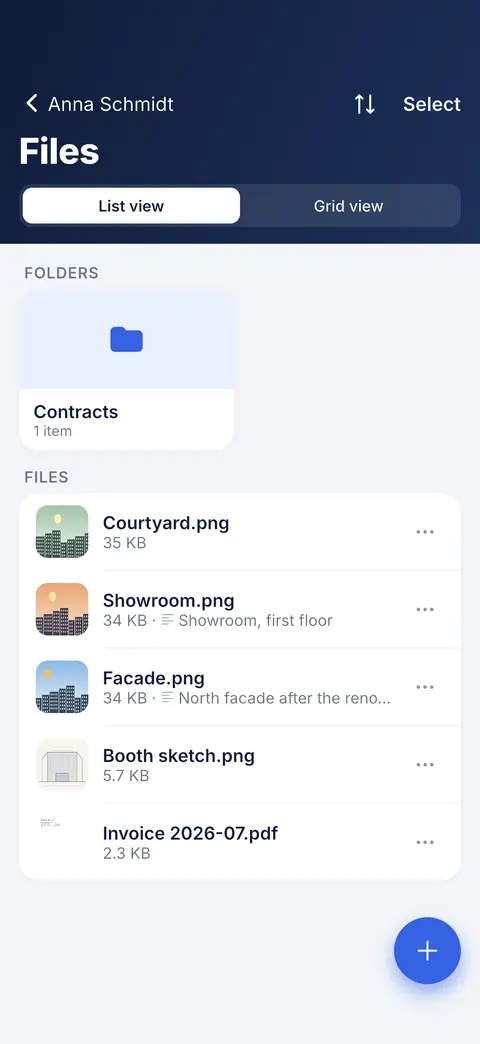 1
Add here
Tap + to add photos, scans, files or a new folder.
- 2
Each file’s menu
Tap ⋯ or hold a file to share, move, rename, describe or delete it.
- 3
Hold an empty spot
Hold empty space to paste, add files or make a folder.
- 4
List or grid
Switch between rows and big thumbnails.
- 5
Select several
Select files to share, move or delete them together.
- 6
Folders
Open a folder; hold it to rename, move, share or delete it.
- 7
Descriptions
Your note about a file shows under its name.
- 8
Swipe to delete
Swipe a file to the left to delete it — Undo brings it back.
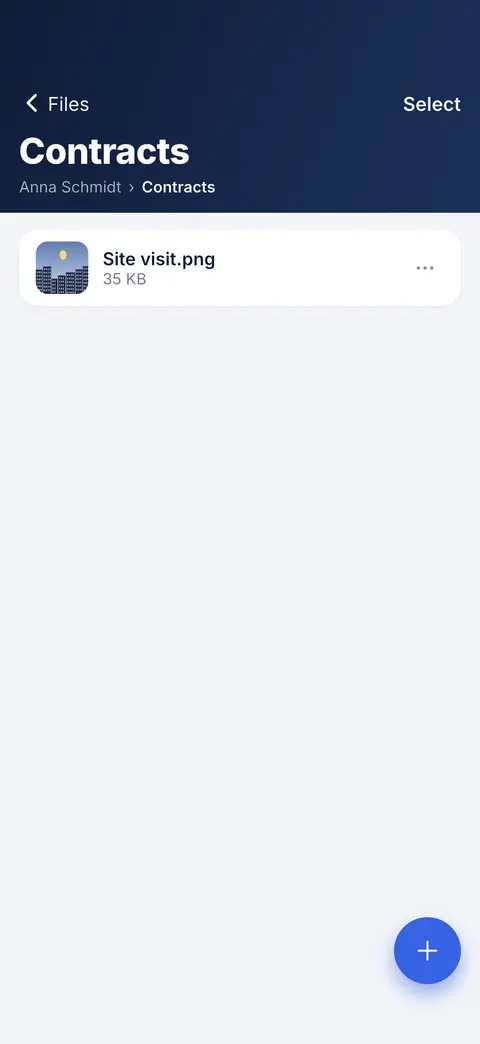 9
Where you are
The path shows which folder you are in; Back goes up one.
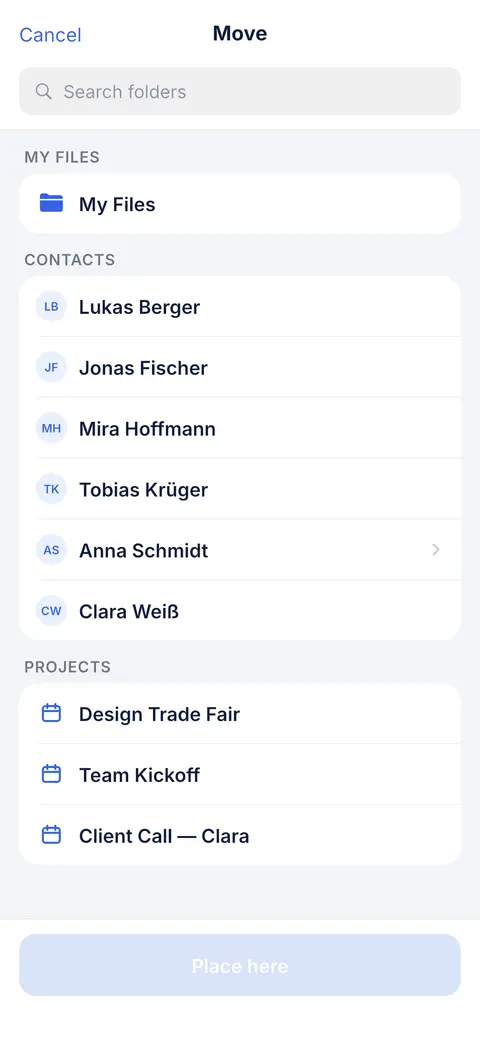 10
Find a place
Search contacts, projects and folders.
- 11
Choose a folder
Tap a contact or project to see its folders.
- 12
Place it here
Moves or copies it to what you picked.
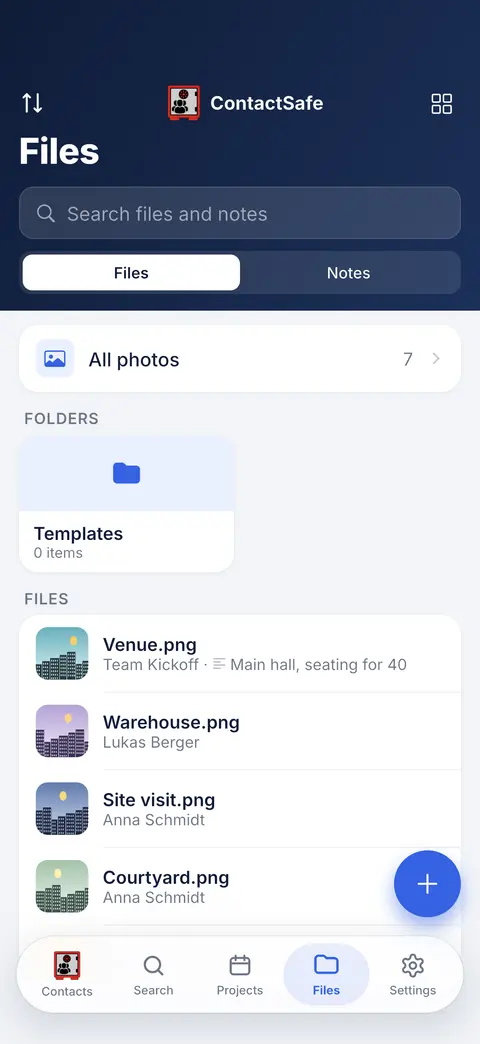 13
All your photos
Every photo from every contact and project, in one place.
- 14
Files and notes
Switch to see every note in one place.
- 15
Sort and view
Newest or oldest first; list or grid.
- 16
Search files
Search file names and note text.
- 17
Hold a file
Hold a file to share, move or jump to its contact or project.
- 18
Your own folders
Folders here belong to no one — they are just yours.
Videos
Photos
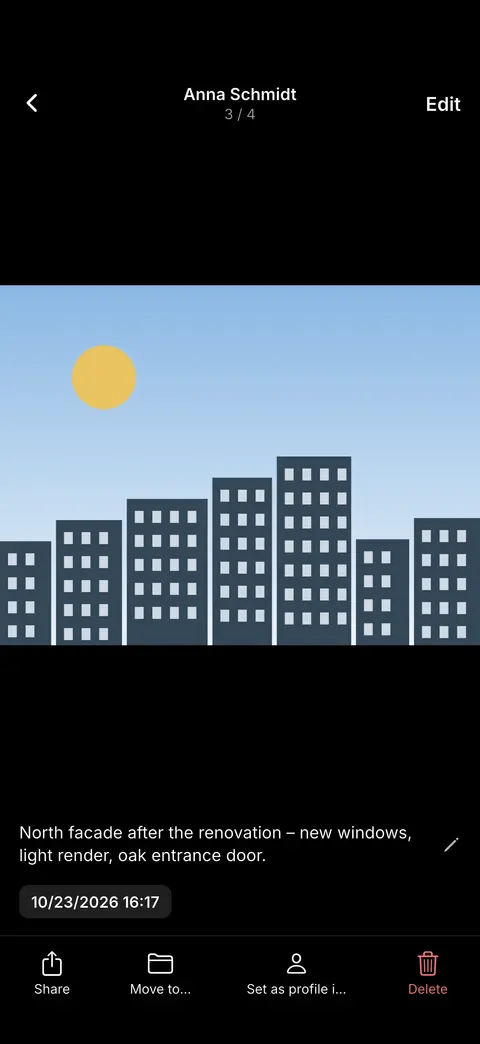 1
Swipe
Swipe left or right for the next photo.
- 2
Whose photo
Tap the name to open its contact or project.
- 3
Add a description
Write a few words about this photo.
- 4
Crop and rotate
Edit saves a cropped or rotated copy; the original stays.
- 5
Share, move, delete
The bar below shares, moves, sets as profile photo or deletes.
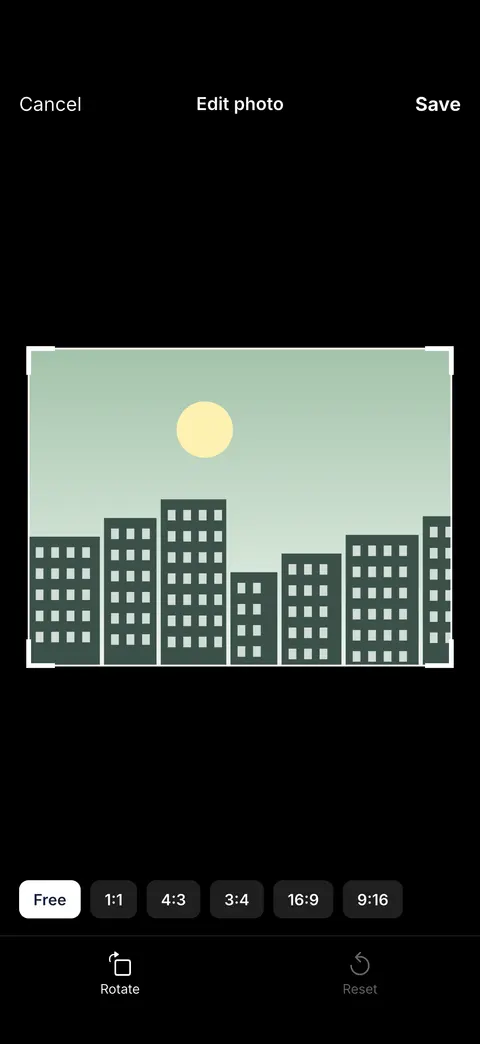 6
Crop and rotate
Drag the corners to crop; rotate with the button.
- 7
Saved as a copy
Done saves a new copy next to the original.
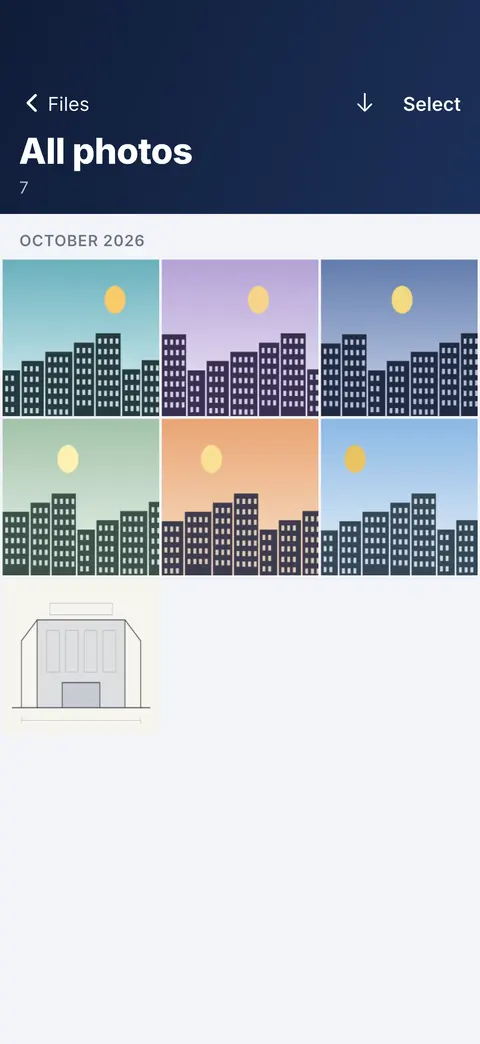 8
Hold a photo
Rename it, describe it or jump to its owner.
- 9
Newest or oldest
Flip the order of the months.
- 10
Select many
Share, zip or delete a batch at once.
Videos
Notes
 1
New note
Tap to write a note for this person or project.
- 2
Swipe for more
Swipe a note to share, print, move to files or delete it.
 3
Saved as you go
Back keeps what you wrote. To throw changes away, use More.
- 4
Share the note
Send the text to another app.
- 5
Link it
Link this note to a file, contact or project.
- 6
More
Print, move to files, or discard your changes.
Videos
Projects
 1
Start a project
Tap + to plan a job with its people, places, files and notes.
- 2
Find a project
Search projects by title or place.
- 3
Sort
Soonest or latest first.
- 4
Project menu
Tap ⋯ to edit, archive or delete a project.
- 5
Archive
Finished projects wait here; open them any time.
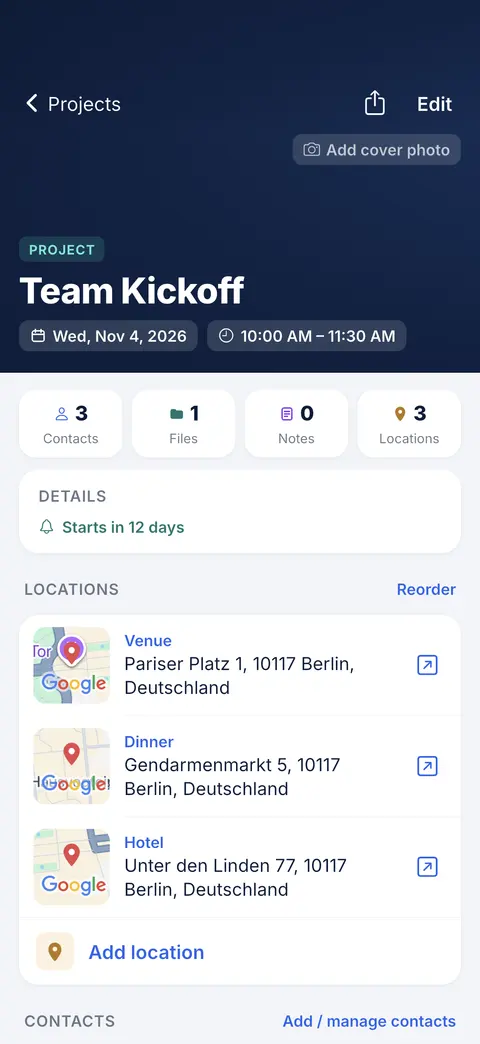 6
Shortcuts
Tap a count to open its contacts, files, notes or places.
- 7
Who is involved
Add the contacts who belong to this project.
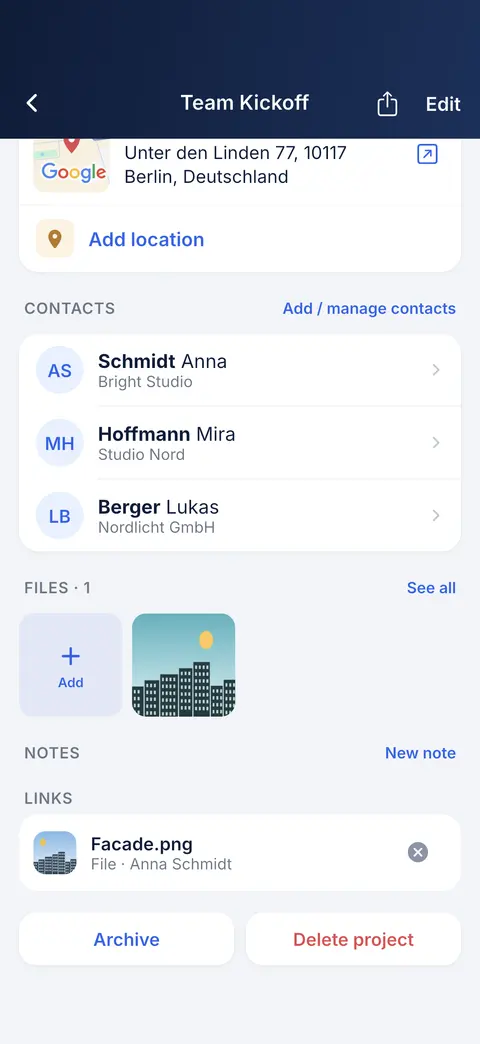 8
Files and notes
Add photos and notes to the project right here.
- 9
Cover photo
Tap the top to add or change the cover.
- 10
Share and edit
Send the whole project as a ContactSafe file, or edit its details.
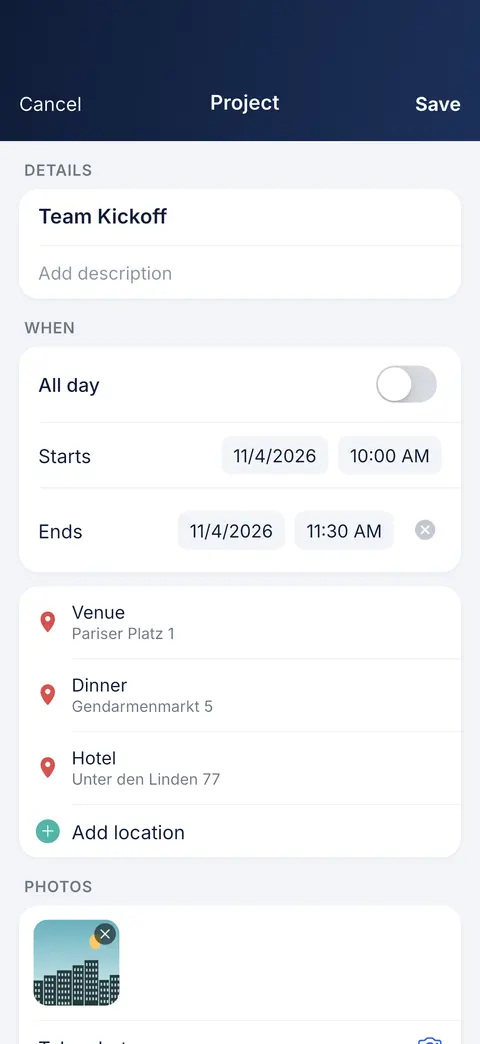 11
Dates
Tap the date or time; an end is optional.
- 12
All day
For a whole day, without a time.
 13
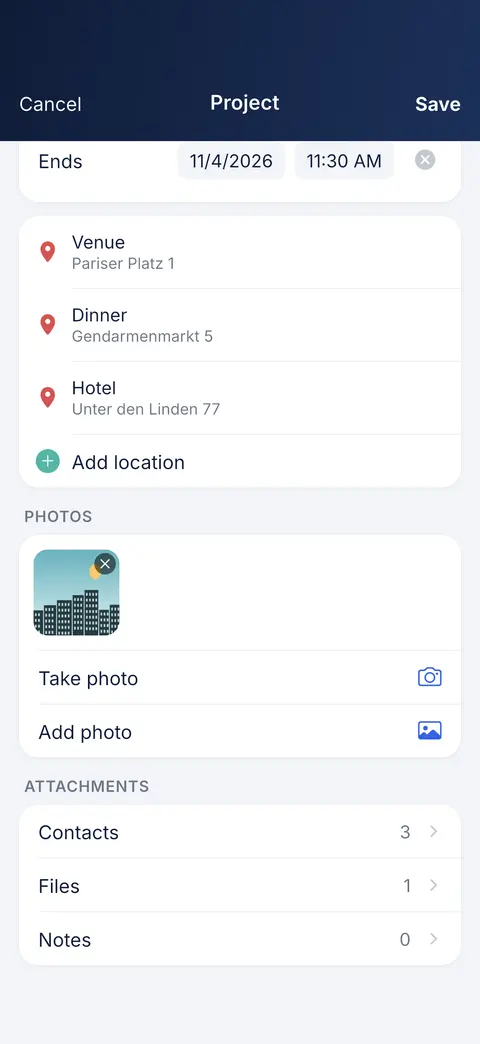
Attachments
Pick contacts and add files and notes.
 14
Their projects
Every project this person is part of.
- 15
A project with them
Tap + to start a project with this person already in it.
 16
Finished projects
Archived projects wait here, out of the way.
- 17
Bring it back
Unarchive puts the project back in the list.
 18
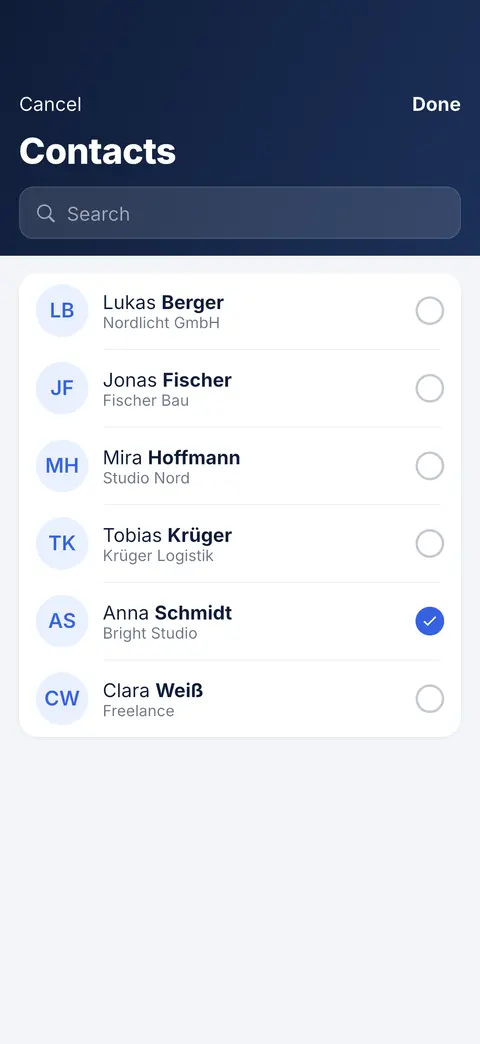
Find people
Search your contacts by name.
- 19
Tick to add
Tap contacts to add them to the project.
- 20
Done
Saves who is in the project.
Videos
Locations
- 1
Places
Add one or more locations; tap one to open, copy or add its website.
 2
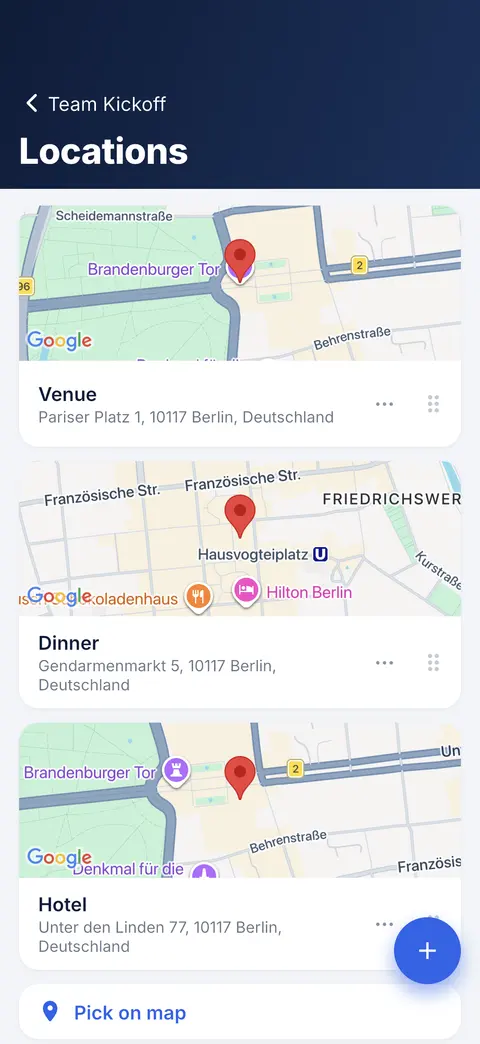
Add a place
Type an address or pick it on the map.
 3
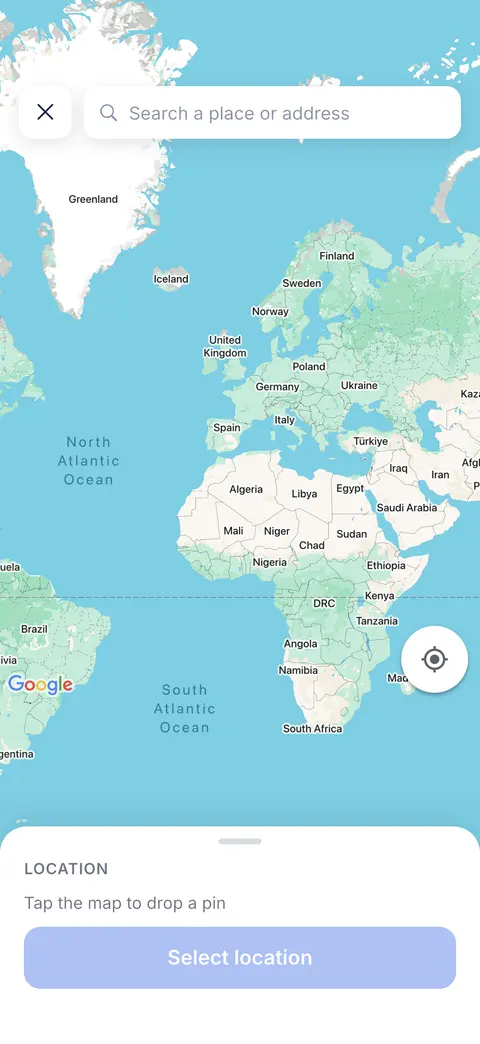
Search a place
Type a name or an address and pick it from the suggestions.
- 4
Or tap the map
Tap anywhere on the map to drop a pin there.
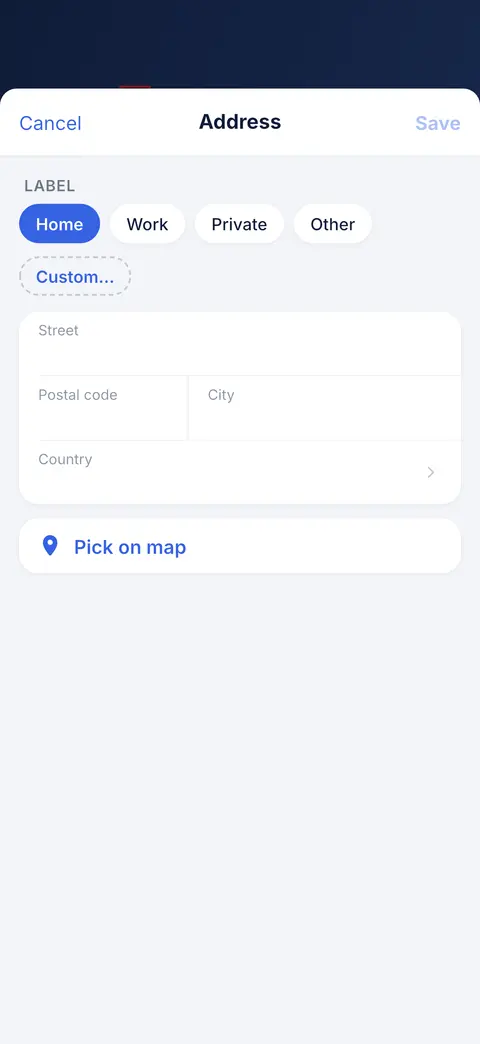 5
Label
Home, Work or your own name for the place.
- 6
Address
Type the street, postal code, city and country.
- 7
Pin on the map
No address? Drop a pin on the map instead.
- 8
Place menu
Rename, copy, open or delete a place.
- 9
Drag to reorder
Hold the grip to change the order.
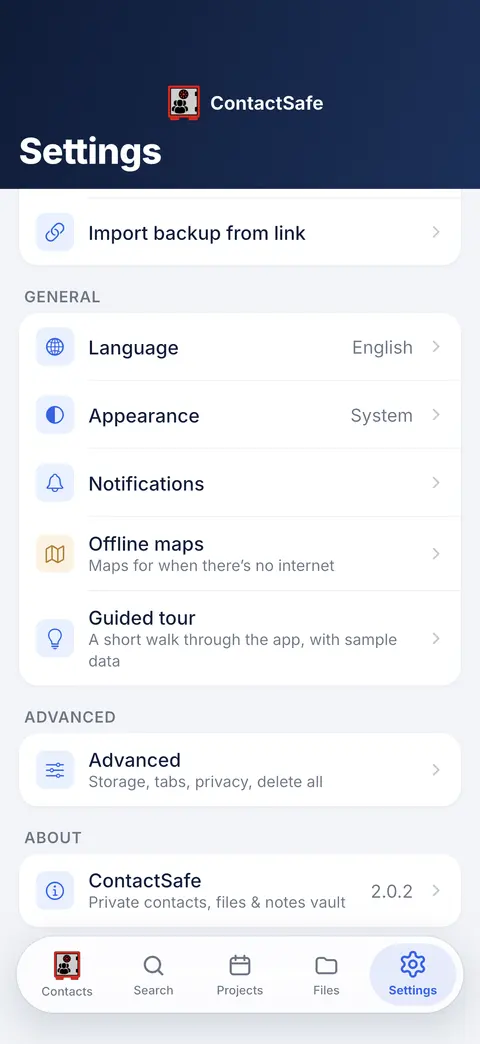 10
Maps without signal
Download a region to place pins offline.
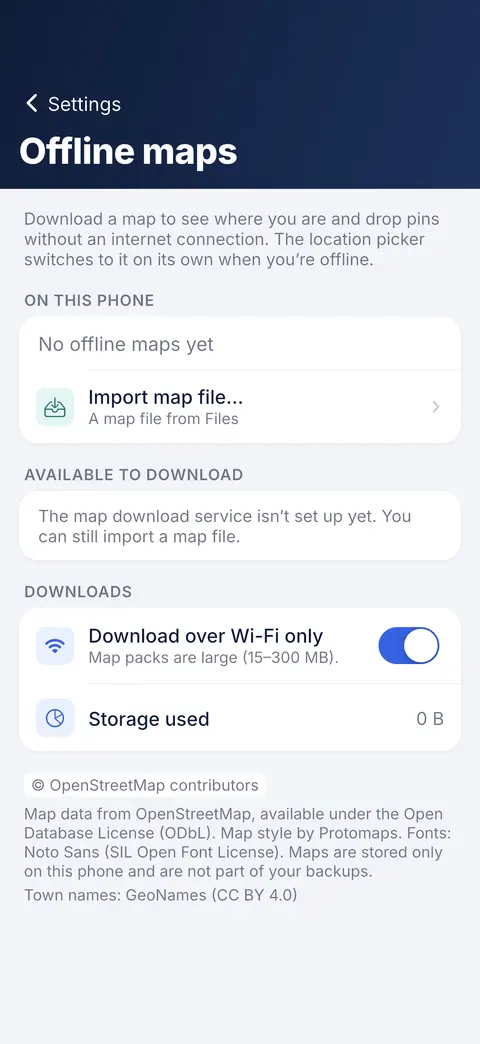 11
Import a map file
Add a map you downloaded elsewhere.
- 12
Wi-Fi only
Big downloads wait for Wi-Fi.
 13
Places open in any maps app
Share a place from your map app to ContactSafe. Tap it later and pick the maps app to open it in.
Videos
Search
 1
Search everything
Names, files, notes and descriptions — type a few letters. ↗ on a result shows where it is.
- 2
Narrow it down
Tap Contacts, Files, Notes and so on to see one kind.
- 3
Show where it is
↗ opens the folder or owner where this lives.
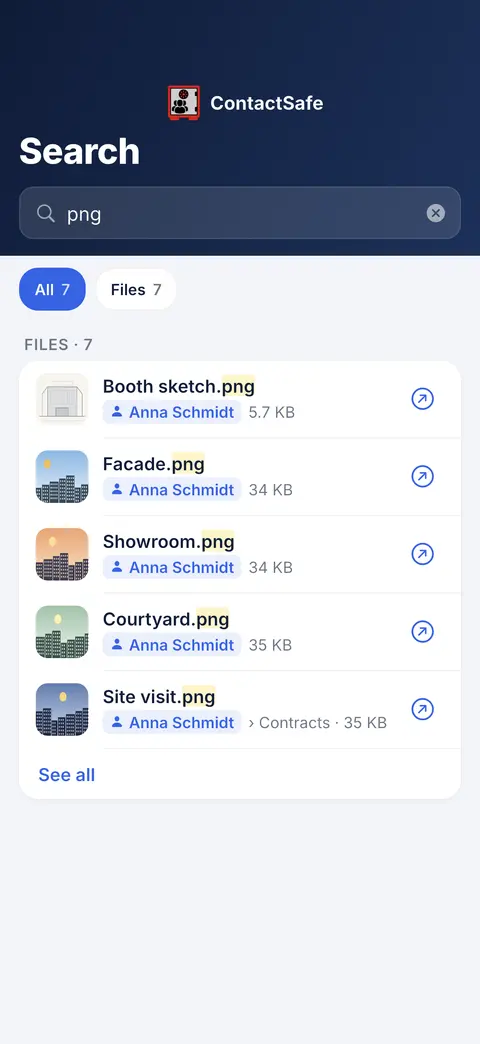 4
See all
Each kind shows five; See all shows the rest.
- 5
See whose file it is
Type in Search. Each file shows its contact or project as a coloured tag; tap it to open that one.
Videos
Share
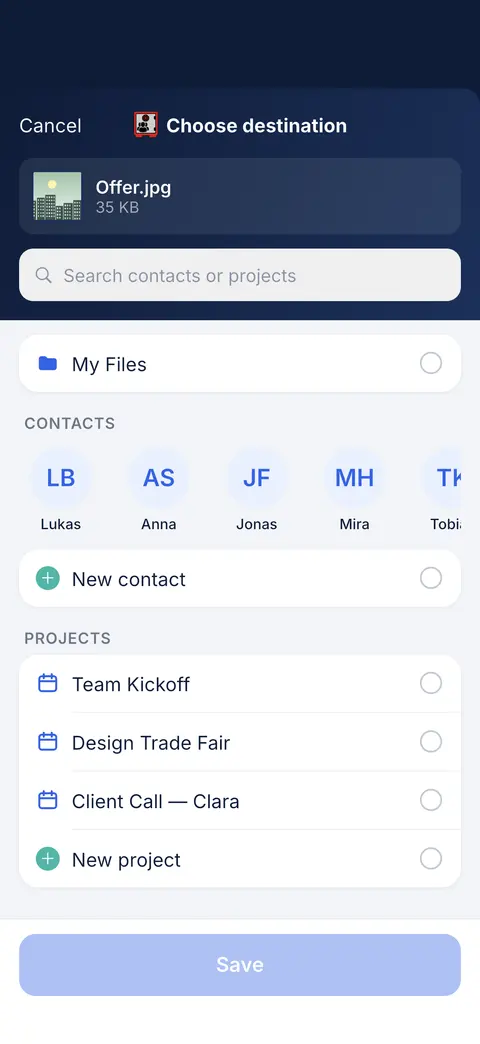 1
Pick a destination
Save to My Files, a contact or a project.
- 2
Search
Find the contact or project by name.
- 3
Someone new
Save it to a new contact or a new project.
- 4
Save
Saves it, then takes you back to the app you came from.
Videos
Links
 1
Link something
Link to a file, note, contact, project or folder.
 2
Find what to link
Type a few letters of its name.
- 3
Linked items
Tap one to open it; × removes only the link.
- 4
Linked items
Files and notes linked to this person show here.
Videos
Backup
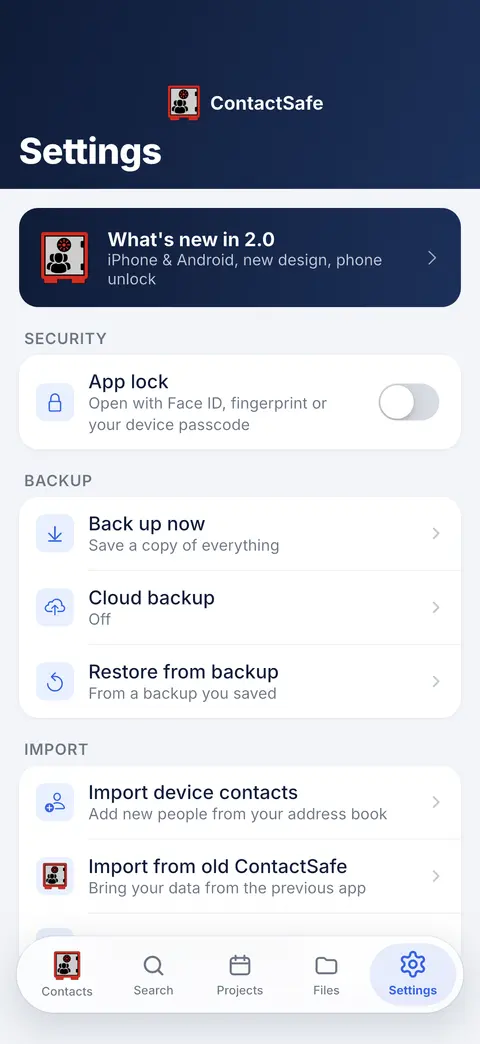 1
Keep a backup
Back up now saves a copy of everything. Keep one somewhere other than this phone.
- 2
Restore
Bring everything back from a backup file.
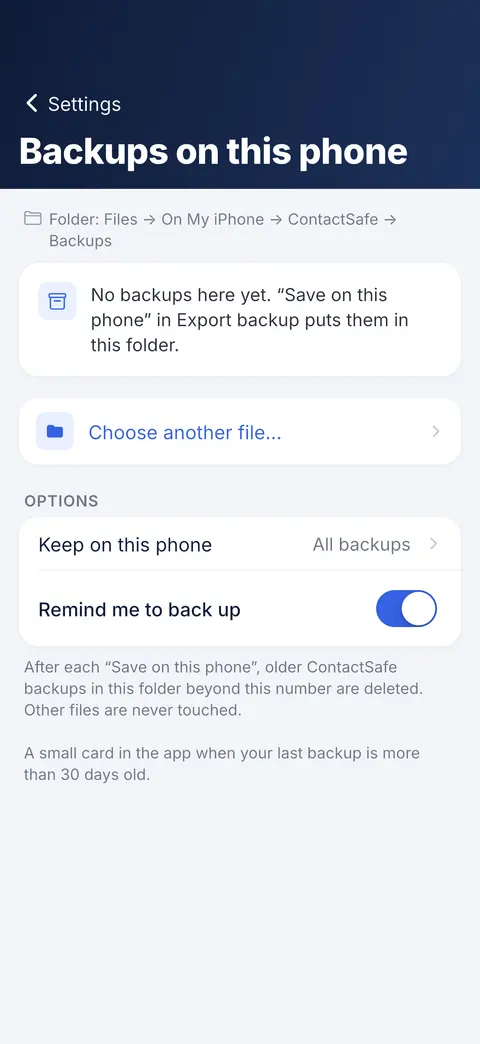 3
How many to keep
Choose how many old backups stay on this phone.
- 4
Another file
Restore from a backup saved somewhere else.
- 5
Bring data in
Import your phone’s contacts, the old app or a backup link.
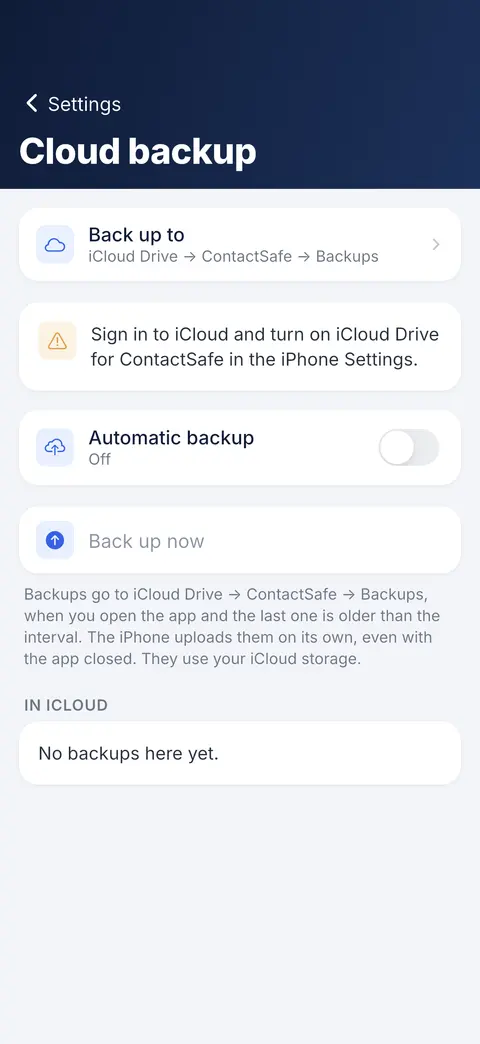 6
Back up to your own cloud
Settings → Cloud backup: choose where to back up and turn on Automatic backup. On a new phone choose the same place and restore.
Videos
Security
- 1
Lock the app
Ask for Face ID, a fingerprint or your code to open ContactSafe.
Settings
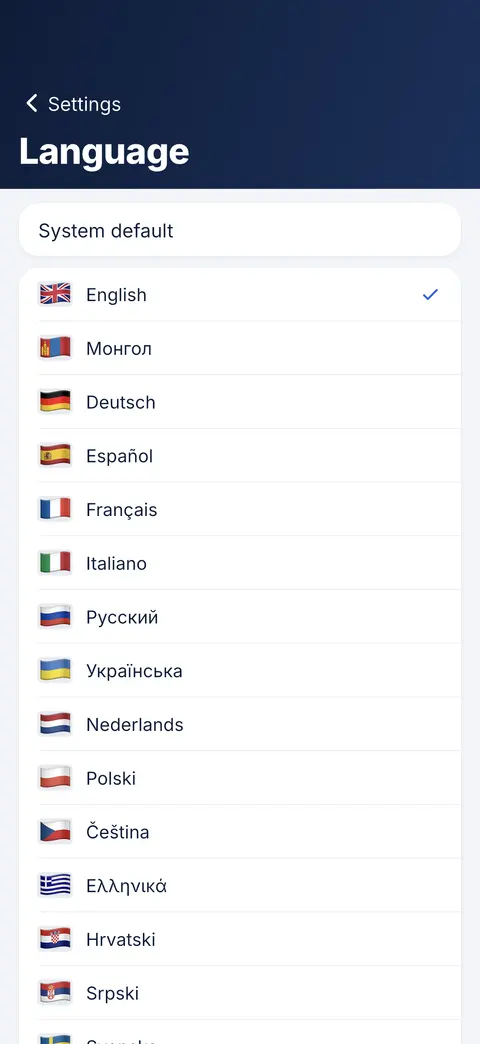 1
Your language
Pick one, or follow the phone with System default.
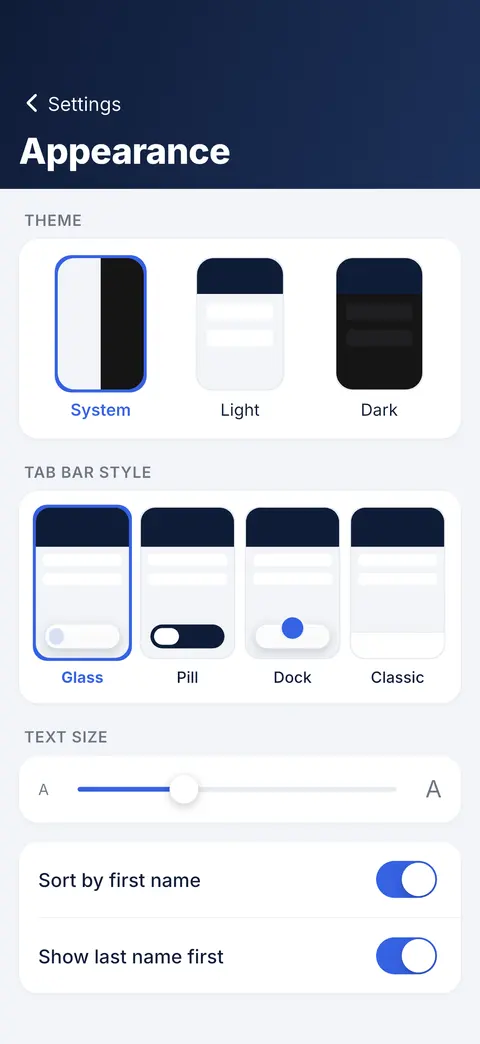 2
Light or dark
Pick a theme, or follow the phone.
- 3
Text size
Make the text bigger or smaller.
- 4
Tab bar style
Choose how the tab bar looks.
- 5
Name order
Sort by first name, or show the family name first.
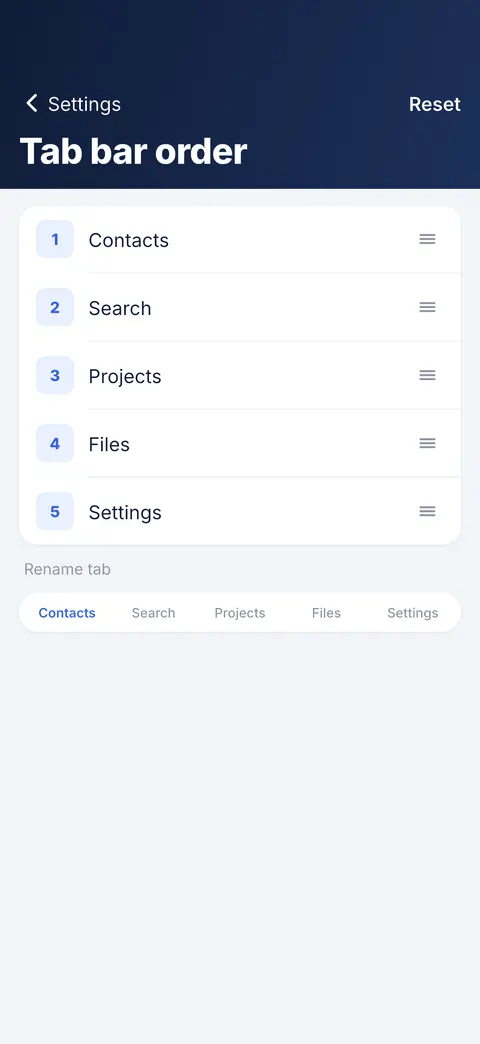 6
Your tab bar
Drag to reorder; tap a tab to rename it.
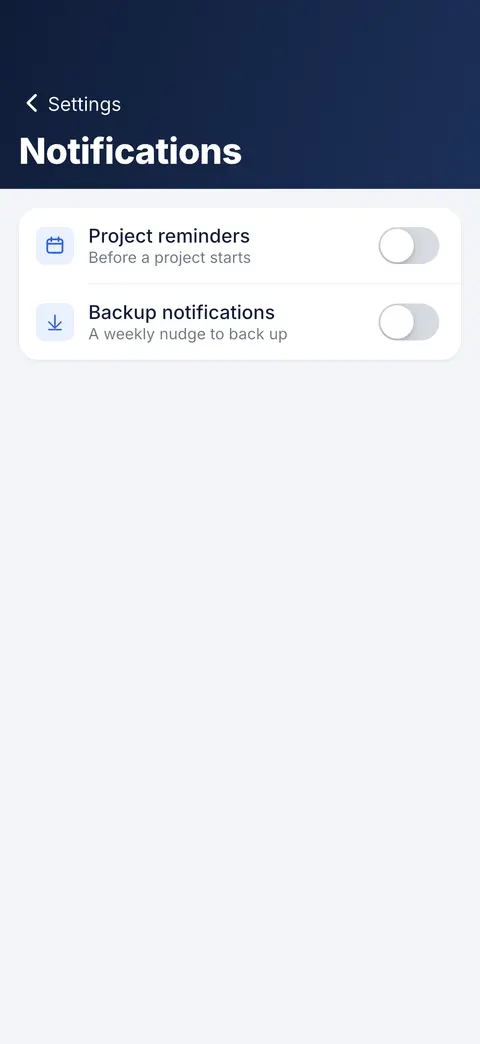 7
Project reminders
Get a reminder before a project starts.
- 8
Backup reminder
A weekly nudge to make a backup.
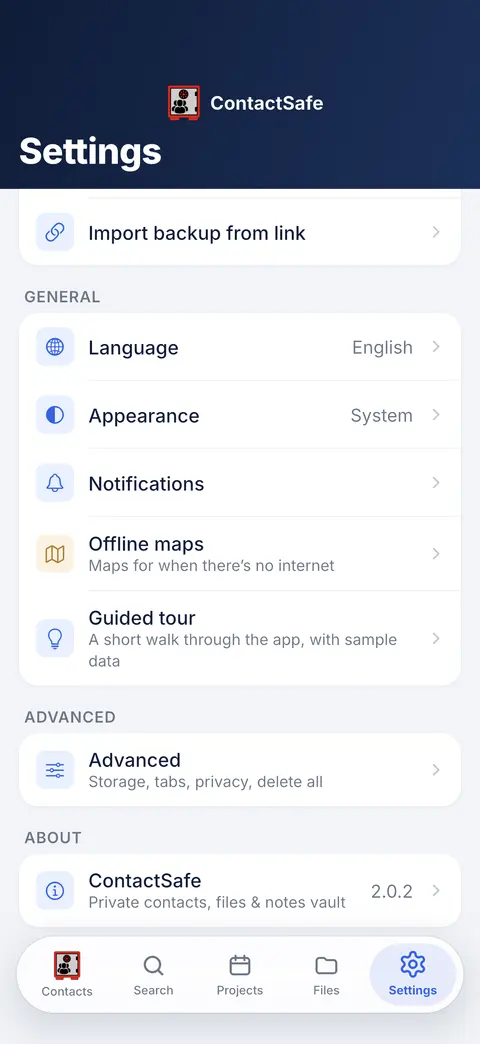 9
Advanced
Storage, tab order and Delete all data live here.
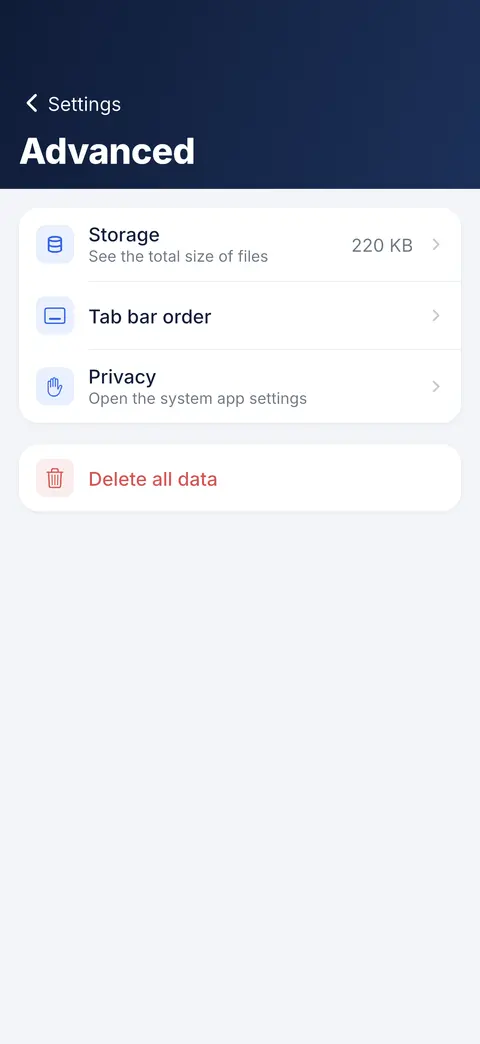 10
Storage
See what takes up space.
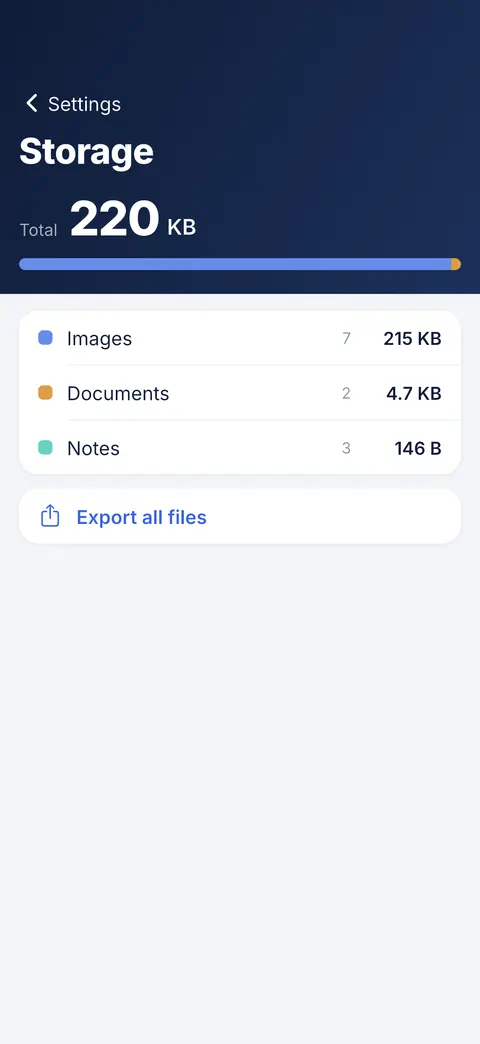 11
What takes space
Files, photos and videos, shown by size.
- 12
Export all files
Save every file in one ZIP — it is not encrypted.
- 13
Tabs
Reorder and rename the tabs.
- 14
Delete all data
Erases the vault on this phone; saved backups stay.
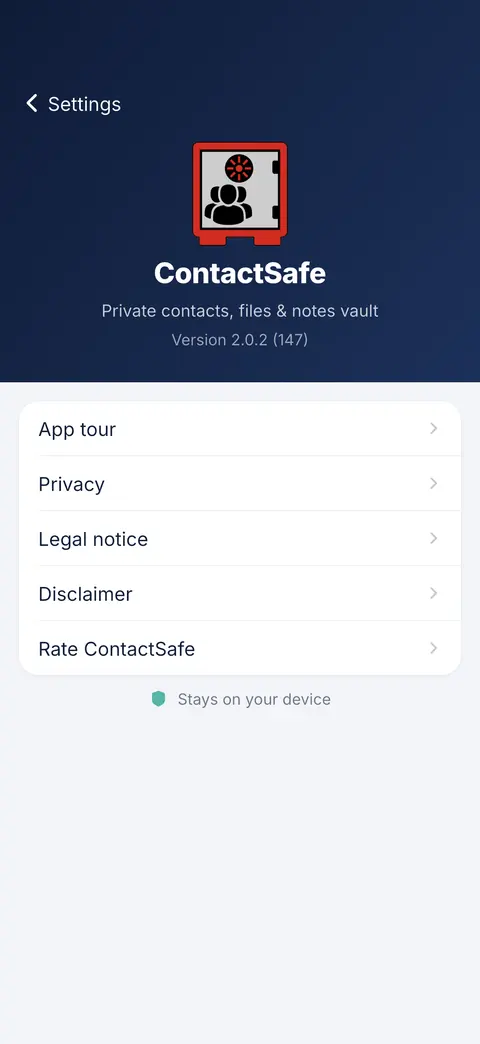 15
Intro again
Replay the welcome pages any time.
- 16
Rate ContactSafe
Tell others what you think of the app.